Open Keys is a probabilistic MIDI mapper and editor. It takes an input (MIDI Note 0-127) and maps it to a new output note based on a set of rules. These can be edited and customized for a variety of musical purposes.
This plugin does not generate sound on its own; it controls existing virtual instruments or hardware synthesizers.
The following sections are described below:
- Main Controls
- Advanced Modes
- Randomization Controls
- Edit Controls
- Menu Controls
- Other Controls
- DAW and Hardware Integration
Main Controls
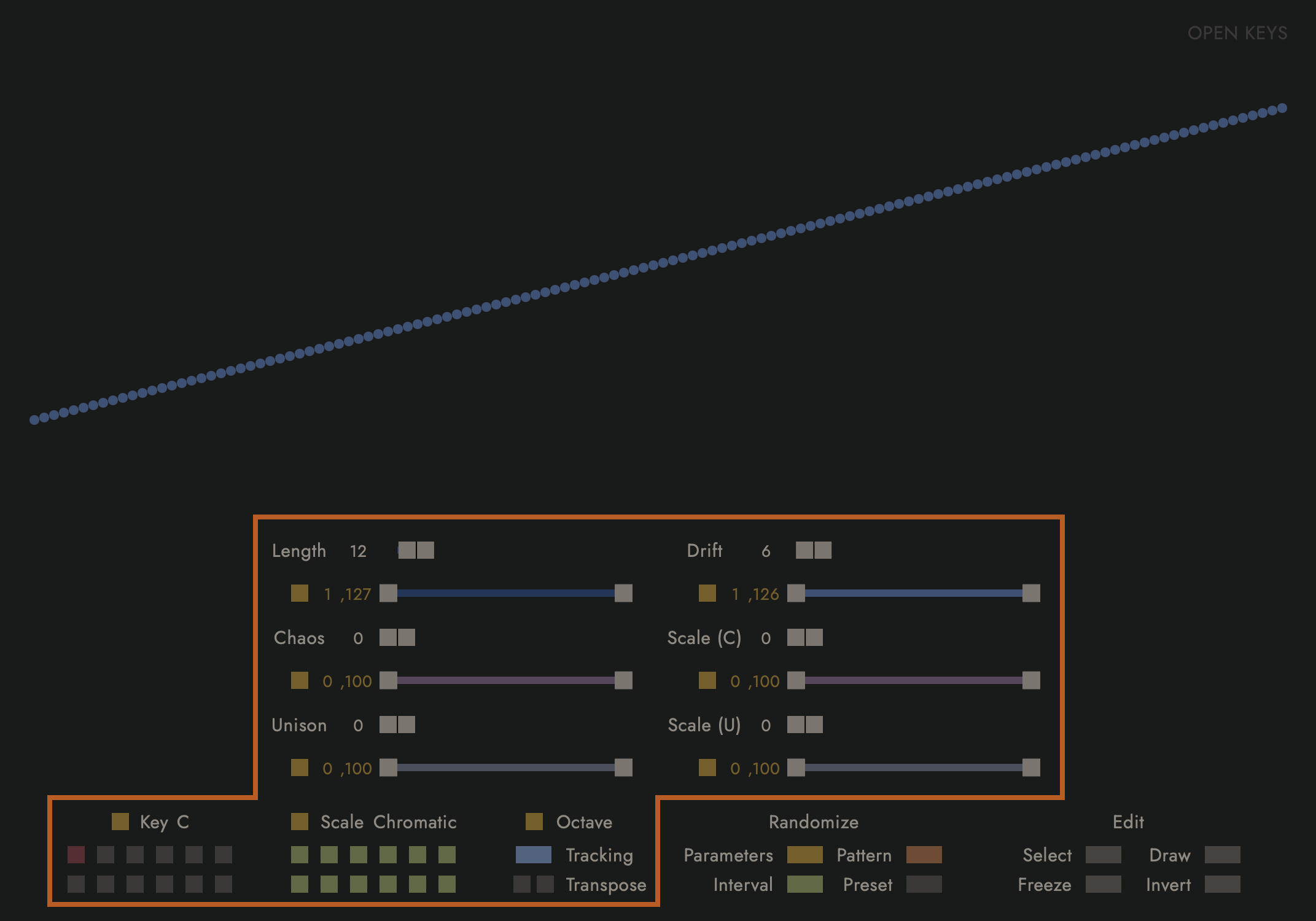
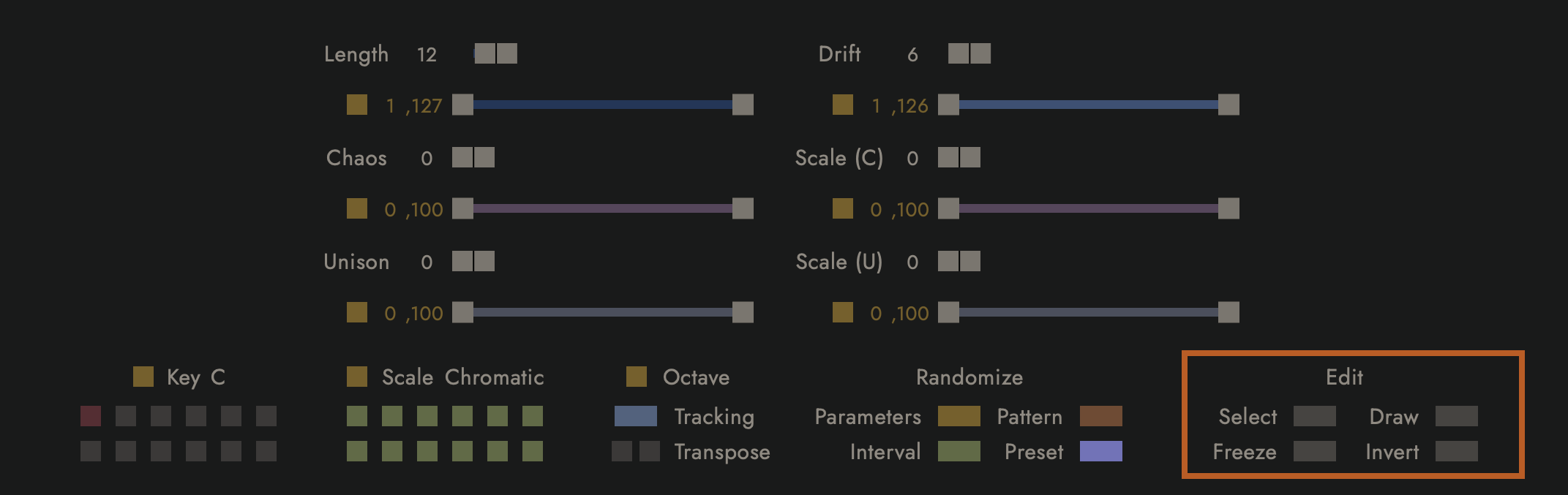
This is the main section of the plugin, used for introducing controlled randomness into the system. These parameters work together to define a set of notes, shown in the visualizer at the top of the screen. By default, the notes are defined as 0-127 (C-2 to G8), and Middle C = C3.
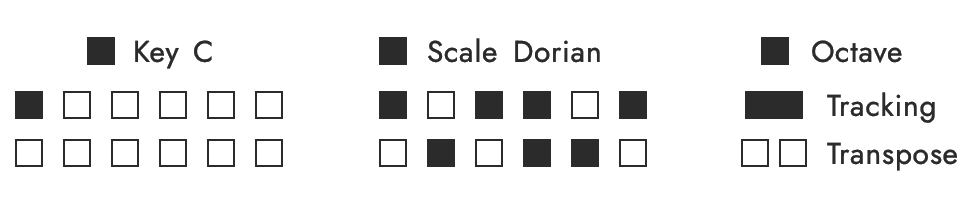
Key: Sets the root note (tonic) for the selected Scale.
Scale: Defines the set of intervals relative to the Key that, when applicable, determine the specific notes available for generation.
Octave Tracking (On/Off): When enabled, each successive repetition cycle (set by Length) is shifted one octave higher.
Octave Transpose (Up/Down): Shifts the pitch in octave increments.
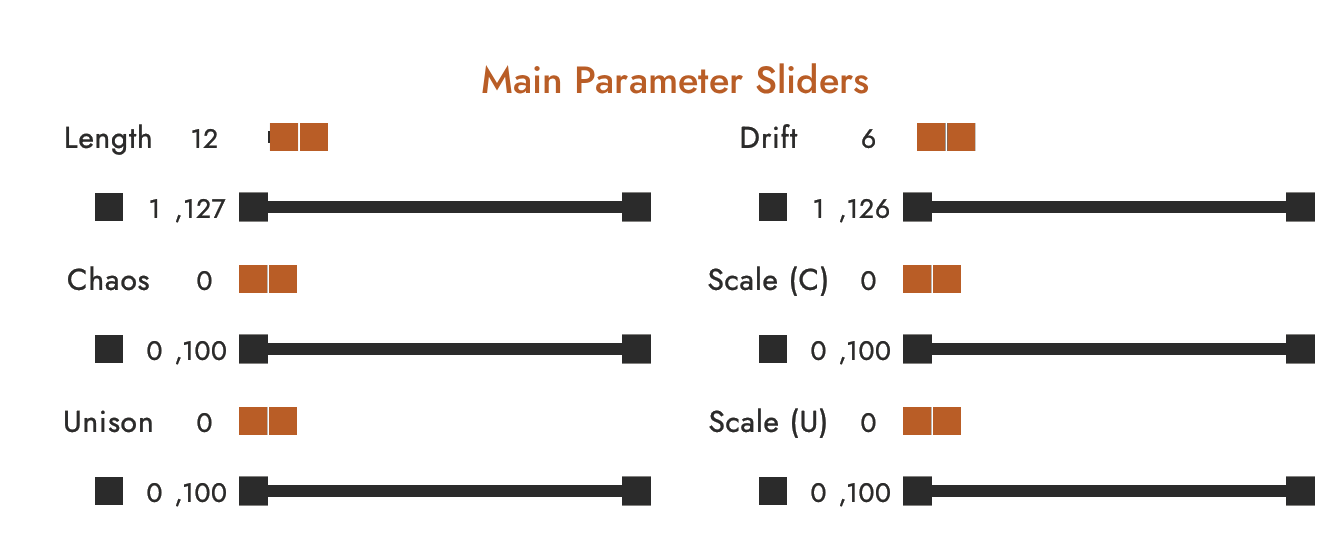
Length (1-127): Sets the number of notes in a repetition cycle that repeat across the keyboard.
If Length is 12, the cycle repeats every 12 steps.
Drift (1-126): Sets the randomization search radius in ± semitones. It does not trigger randomization itself; it defines the pool of available notes if randomization happens. A value of 1 allows notes within ±1 semitone of the original note.
Chaos (%): The probability that a given note will change to a new note. If Chaos is 0%, the engine never enters the Drift stage and the note is locked to its original value. If Chaos is 100%, the engine always attempts to select a note from the Drift pool, subject to the rules of the active Chaos Mode.
Scale Chaos (%): The probability that the system will enforce Key/Scale (diatonic) constraints, subject to the logic of the active Chaos Mode. When Scale Chaos is 0%, the Chaos generation is chromatic and Chaos Mode constraints are ignored. When Scale Chaos is 100%, the system strictly enforces the logic determined by the active Chaos Mode.
Unison (%): The probability that a note will abandon its independent calculation and instead derive its pitch from another step in the repetition cycle. If Unison is 0%, every note behaves independently. At 100%, the engine attempts to link every note to a neighbor determined by the Unison Mode.
Scale Unison (%): The probability that a note generated by Unison is forced to fit the selected Key/Scale. When Scale Unison is 0%, Unison may result in a note outside the Key/Scale. At 100%, Unison forces the resulting copied note to fit into the selected Key/Scale.
Advanced Modes
Length Mode: There are 2 different modes that change the behavior when setting Length. To change the Length Mode, shift-click the Length text or change it in the top OPEN KEYS menu under Length Mode.
- Mode 1: Octave tracking is locked to 12 semitones. Repetition cycles wrap within this range, causing patterns to overlap and shift against the grid when the length is not a multiple of 12.
- Mode 2: Octave tracking adapts to match the Length value. When Length is greater than 12, the repetition cycle extends continuously upward by the number of steps in the pattern, preventing overlapping pitches.
Chaos Mode: Determines how the system handles Key/Scale constraints when Scale Chaos is triggered.
- Mode 1: When Scale Chaos is introduced, only the notes generated by Chaos are subject to the Key/Scale constraints. The original notes are not changed.
- Mode 2: When Scale Chaos is introduced, the entire pattern is subject to the Key/Scale constraints. If a note does not fit into the selected Key/Scale, it changes to the nearest valid pitch.
- Mode 3: When Scale Chaos is introduced, the entire pattern is subject to the Key/Scale constraints. If a note does not fit the selected Key/Scale, it becomes silent.
- Mode 4: Randomly alternates between Modes 1, 2, and 3 for each individual trigger.
Unison Mode: Determines how the note copies its neighbor when Unison is triggered:
- Mode 1: Replaces the current note with the exact pitch of a different step within the active repetition cycle. This creates a behavior where specific pitches from the cycle reappear.
- Mode 2: Copies the movement (interval shift) of another step in the repetition cycle rather than its absolute pitch. This causes the current note to move the same distance and direction (in semitones) as the source, creating parallel movement.
- Mode 3: Copies the movement of another step in the repetition cycle but inverts the direction.
- Mode 4: Randomly alternates between Modes 1, 2, and 3 for each individual trigger.
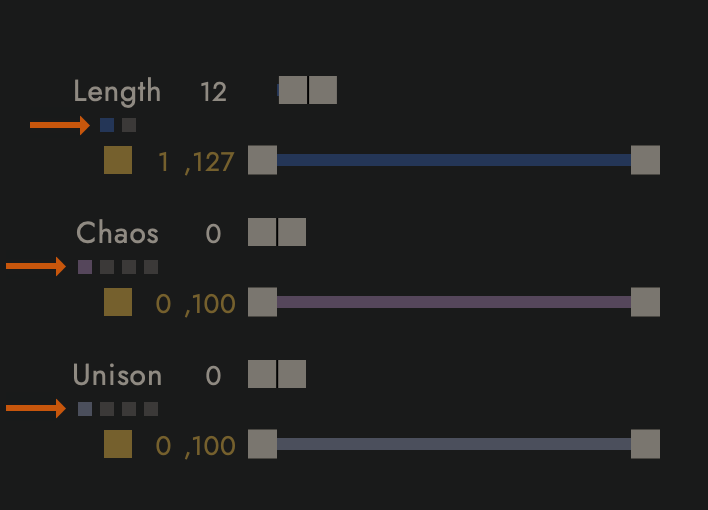
Randomization Controls
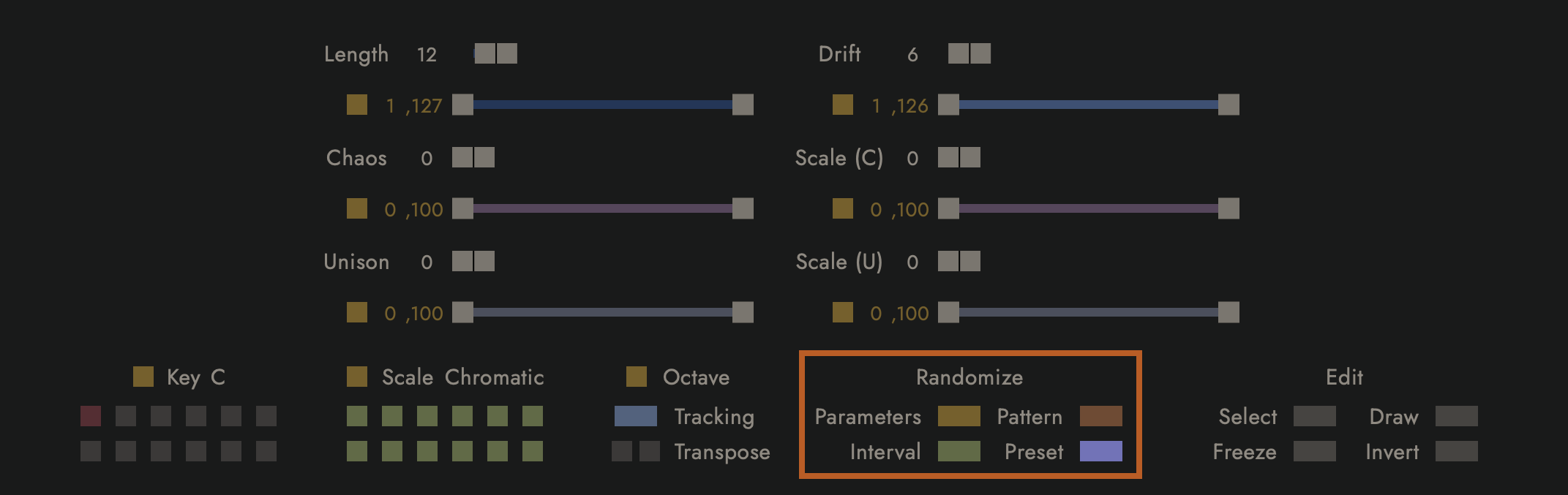
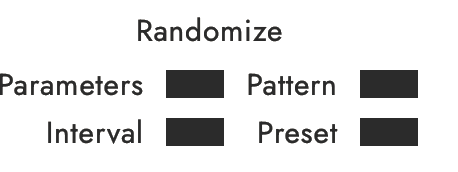
Randomize Parameters: Randomizes the value of all enabled parameters.
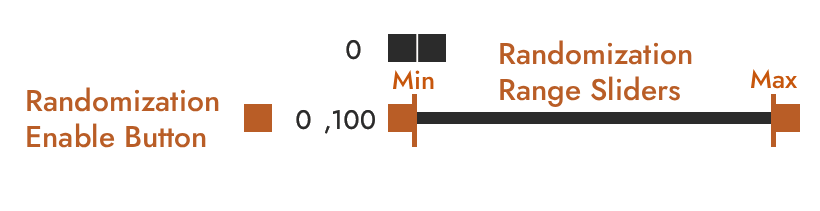
Randomization Enable: The buttons next to each of the main parameters (the square yellow buttons shown here) enable or disable randomization when Randomize Parameters is clicked.
Note: Chaos Mode and Unison Mode do not have Randomization Enable Buttons visible, but randomization can be enabled or disabled for them in the top OPEN KEYS menu or by shift-clicking the Scale (C) and Scale (U) text.
Randomization Range Sliders: The bottom slider for each of the 6 main parameters (Length, Drift, Chaos, Scale Chaos, Unison, and Scale Unison) sets the range (minimum and maximum values) of a given parameter when Randomize Parameters is clicked.
This can be especially useful for containing Drift randomization values, as large differences in pitch can be difficult to work with.
Randomization Pattern: Randomizes the notes using the existing settings of each parameter.
Note: Shift-clicking the Randomize Pattern button changes this button to Shift Pattern. If you prefer the Shift Pattern behavior over Randomize Pattern, you can change the default in the Swap Randomize Pattern in the Open Keys menu.
Randomization Interval: Randomizes the interval that sets the Scale.
Randomization Preset: Randomizes the preset when 2 or more presets are saved.
Edit Controls
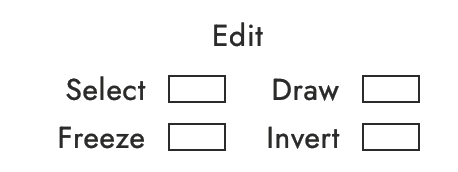
Select: Allows the user to select a group of notes to further edit.
New Pattern From Selection: To make a new pattern from the selected area, right-click on the selection in the visualizer and click New Pattern From Selection.
Freeze: Freezes the area selected in Select mode, allowing for the editing of unfrozen notes only. The 2 Freeze sub-buttons allow the user to switch back and forth between freezing the selected and unselected notes. When the area between the vertical selection bars is frozen (left sub-button is on) the frozen selection can be moved with the 2 selection sub-buttons above the Freeze sub-buttons.
Reset Unfrozen Notes: When the area between the vertical selection bars is frozen (left sub-button is on) and you want to reset the unfrozen selection to default parameters, right-click on the selection in the visualizer and click Reset Unfrozen Notes.
Draw: Allows the user to edit notes with the mouse or sub-buttons.
- Mode 1: Edit the pitch of a single note. To select a note use the mouse, play the note on the keyboard, or shift-click the Mode 1 sub-buttons.
Use the 2 sub-buttons to change the pitch.
Silence a note by right clicking it. - Mode 2: Use the mouse to continuously draw notes.
Invert: Inverts the pattern.
Menu Controls
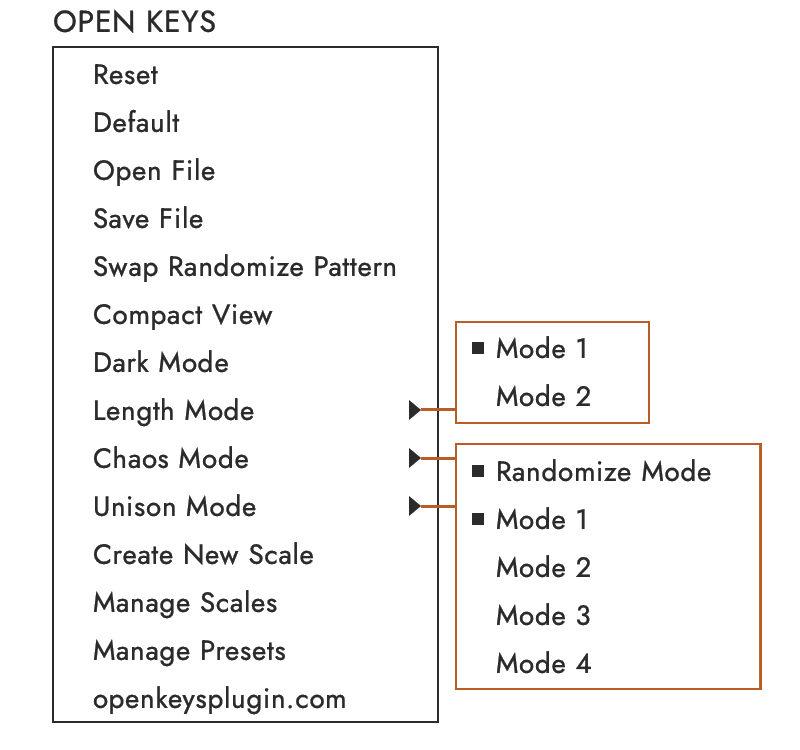
The Open Keys button allows the user to do the following:
- Reset: Resets all main parameters to their defaults, disables Edit modes, and deletes any manual note edits or drawn notes currently on the grid.
- Default: Resets everything to default and clears presets.
- Open File: Open a saved file.
- Save File: Save a file with the current settings and 48 presets bank.
- Swap Randomize Pattern: When selected, the Randomize Pattern button becomes Shift Pattern and shift-clicking the Randomize Pattern button randomizes the pattern. When deselected, the actions are swapped to default.
- Compact/Standard View: Switch view mode size.
- Light/Dark Mode: Switch view mode colors.
- Window Size: Select the window size of the plugin.
- Hide Presets: Hide the presets.
- Hide Mode Buttons: Hide the mode buttons.
- Length Mode: Select the Length Mode.
- Chaos Mode: Select the Chaos Mode and enable randomization for Chaos Mode when the Randomize Parameters button is clicked.
- Unison Mode: Select the Unison Mode and enable randomization for Unison Mode when the Randomize Parameters button is clicked.
- Save Current Scale: When an unsaved interval is active, this menu is available to save the current scale.
- Create New Scale: Create a Scale and save it.
- Manage Scales: Edit and delete user Scales. Enable or disable any Scale from randomization selection when the Randomize Parameters button is clicked and the Scale Randomization Enable Button is on.
- Manage Presets: Move, delete, and copy presets from the preset banks between files.
- Deactivate License: Deactivates the current license for use on another device.
Other Controls
There are a number of hidden clicking options that may make the plugin easier to use.
Double-clicking the main parameters (Length, Drift, Chaos, Scale Chaos, Unison, and Scale Unison) sliders resets the value to default.
Clicking "Scale" text moves to the next scale, while shift-clicking it goes to the previous scale.
Here is a list of other shift-click actions:
| Shift-Click | Action |
|---|---|
| "Open" text | Reset |
| "Keys" text | Change Standard/Compact View mode |
| Visualizer | Change Light/Dark View mode |
| Randomization Parameters button | 1. Hide main control values 2. Hide main controls |
| Randomization Interval button | Hide Randomization Enable buttons |
| Randomization Preset button | Hide Preset Bank |
| Octave Transpose buttons | Semitone Transpose |
| Randomization Pattern button | In default mode, Shift Pattern. If the Swap Randomize Pattern file item is selected, Randomization Pattern. |
| Randomization Enable buttons | 1. Solo Randomization Enable for a specific parameter 2. Enable Randomization Enable for all parameters |
| "Chaos" text | Select the Chaos Mode |
| "Scale (C)" text | Randomization Enable Chaos Mode on/off |
| "Unison" text | Select the Unison Mode |
| "Scale (U)" text | Randomization Enable Unison Mode on/off |
| Draw Mode 2 sub-buttons | Change the selected note |
| Scale buttons | Solo button |
DAW and Hardware Integration
In most DAWs, using Open Keys is a straightforward process. Depending on your DAW, you can either load Open Keys directly into a dedicated MIDI FX slot (Logic Pro) or place it on its own track and route its MIDI output directly to the MIDI input of your target virtual or hardware instrument.
The following DAWs require specific instructions:
Ableton Live
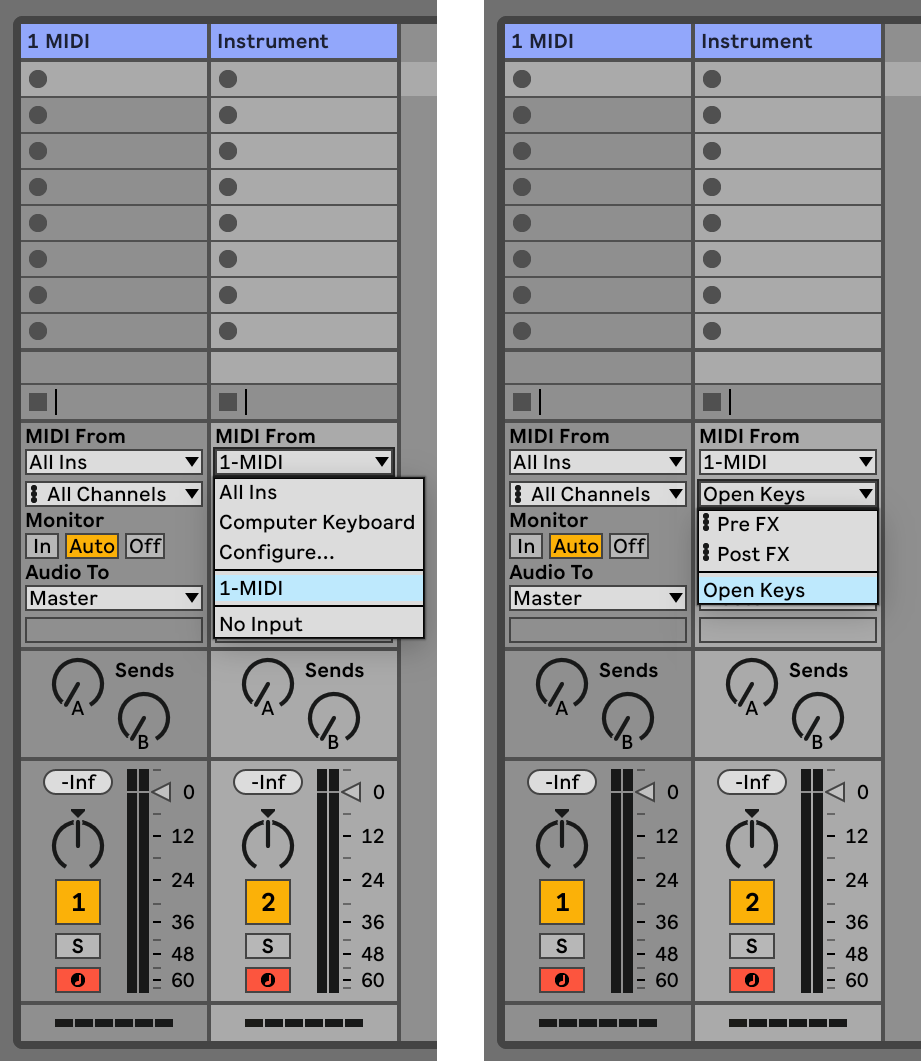
Ableton Live has MIDI Effects of its own, but it doesn’t allow third-party plugins to be dedicated MIDI plugins. This means that MIDI plugins like Open Keys need their own track. It is relatively simple to do, but requires a few important steps to work correctly.
- Create 2 MIDI tracks.
- Load Open Keys in 1 MIDI.
- Load the instrument you want to control in 2 MIDI.
Note: for analog hardware, you can use the External Instrument. - In the instrument track MIDI From dropdown selection:
- Change All Ins to 1 MIDI (or whatever named track 1).
- Change Post FX to Open Keys.
- Enable recording in both tracks and make sure Monitor is set to Auto or In.
FL Studio
FL Studio handles internal MIDI routing using "Ports" inside the plugin wrapper settings, as follows:
- Load Open Keys on a channel.
- Click the Gear icon (Wrapper Settings) at the top of the Open Keys plugin window.
- Go to the Settings tab and set the MIDI Output Port to 1 (or any unused number).
- Load your target virtual instrument on a second channel.
- Open its Wrapper Settings, and set its MIDI Input Port to that exact same number (1).
Cubase
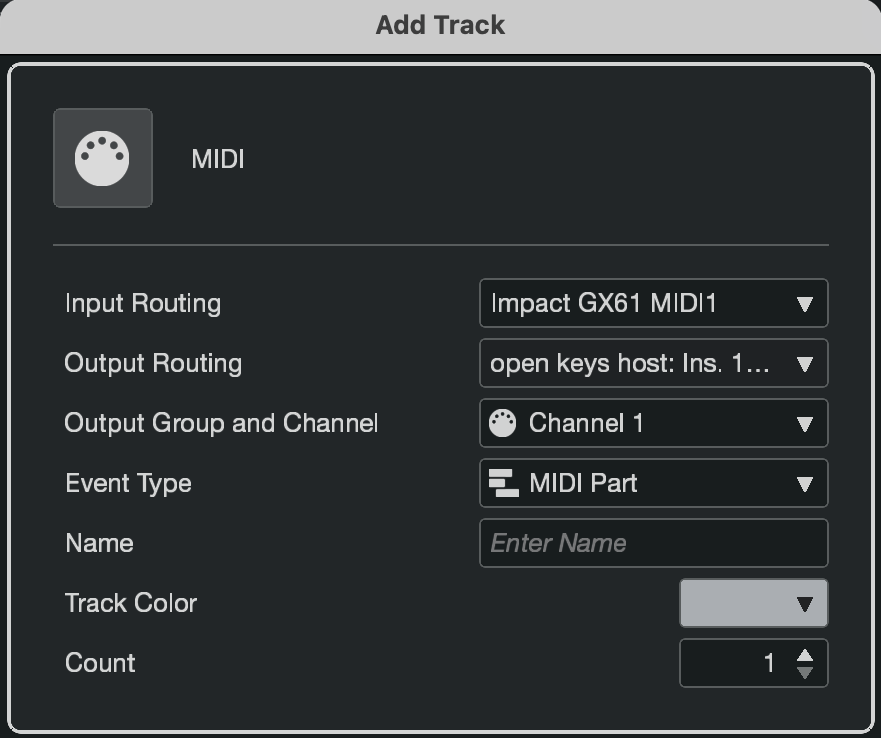
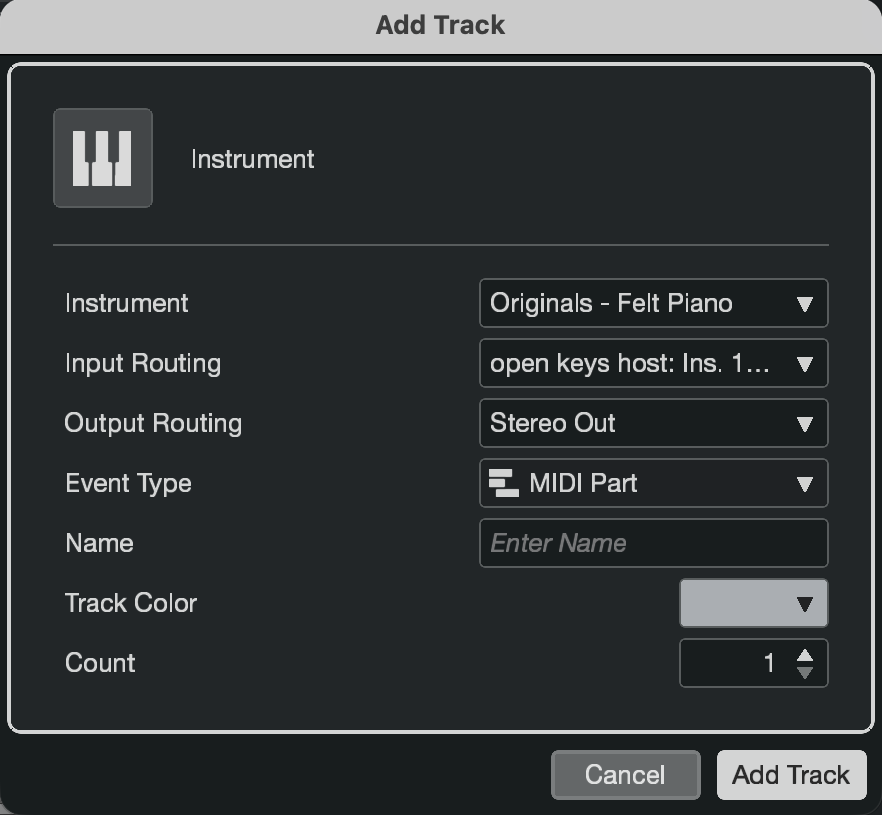
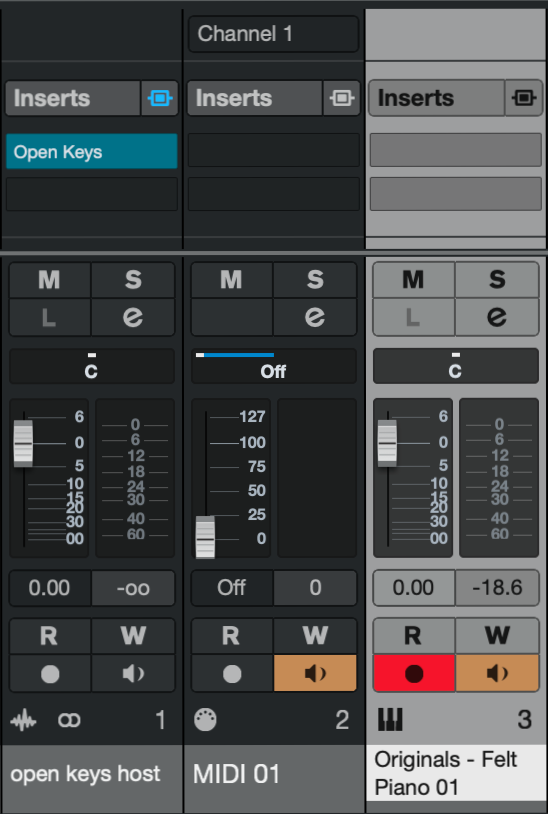
To set up Open Keys in Cubase, follow these steps:
- Create an Audio Track.
- Load Open Keys into an Insert slot on this track.
- Create a MIDI Track.
- Set Input Routing to your MIDI controller.
- Set Output Routing to the Open Keys insert on your audio track.
- Create an Instrument Track and load your instrument.
- Set Input Routing to the Open Keys MIDI output (located under the "Plug-ins" section in the dropdown).
- Turn on the Monitor button (speaker icon) on your MIDI Track.
- Turn on the Monitor button (speaker icon) on your Instrument Track.
Note: You can select the 3 tracks, right-click them, and select Save Track Preset so you don't have to repeat this process every time.
MIDI Mapping
The following parameters are enabled for automation/MIDI Mapping:
- Key
- Scale
- Octave Tracking
- Octave Transpose
- Semitone Transpose
- Length Randomize Range Sliders Min/Max
- Drift
- Drift Randomize Range Sliders Min/Max
- Chaos
- Chaos Randomize Range Sliders Min/Max
- Scale Chaos
- Scale Chaos Randomize Range Sliders Min/Max
- Unison
- Unison Randomize Range Sliders Min/Max
- Scale Unison
- Scale Unison Randomize Range Sliders Min/Max
- Invert
- Length Mode
- Chaos Mode
- Unison Mode
- Reset
- Randomize Pattern
- Shift Pattern
- Previous Preset
- Next Preset
- Previous Scale
- Next Scale
- Jump to Preset 1
- Jump to Preset 13
- Jump to Preset 25
- Jump to Preset 37
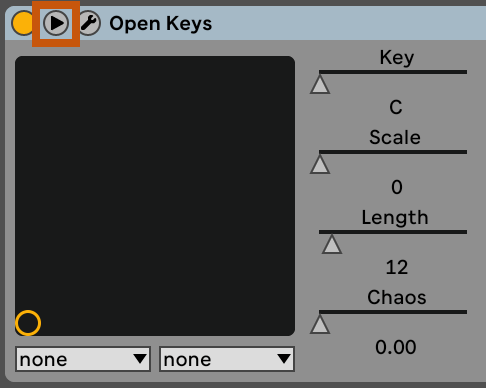
In Ableton Live, this is done by clicking the Unfold Device Parameters triangle as shown here.